> ## Documentation Index
> Fetch the complete documentation index at: https://docs.robbu.global/llms.txt
> Use this file to discover all available pages before exploring further.
# Positus Studio
> Management platform - Join Positus right now and reach all your customers using WhatsApp!
# Positus Studio
## Who can create an account in Positus Studio?
Anyone interested in discovering the WhatsApp Business API and Positus solutions. \
By creating an account, you will get full access to a completely free testing environment, with no credit card details required.
***
## Why should I create an account in Positus Studio?
#### 👨🎓 Programming Students
* **Free Access:** Full access to all WhatsApp Business API features.
* **Comprehensive Documentation:** Complete guides and resources.
* **Instructional Videos:** Step-by-step videos available in several programming languages.
* **Integrations:** Build integrations with third-party systems and chatbot platforms.
#### 😍 Customers
* **Positus Messenger:** Access the customer service platform to assist your clients.
* **Number Management:** Exclusive management of your official phone numbers.
* **Real-time Billing:** Track your usage costs instantly.
* **Green Badge:** Opportunity to request the official green verification badge on WhatsApp.
* **Premium Support:** High-priority customer care.
* **Full API Access:** Complete connectivity to the official WhatsApp API.
* **HSM Creation:** Build highly structured message templates.
* **Documentation & Media:** Full technical documentation and multi-language instructional videos.
* **Extensibility:** Connect easily with third-party CRMs and chatbot solutions.
#### 💼 Partners
* **Meta Official Partnership:** Formalize your partnership with Meta/Facebook via an ISV contract.
* **Partner Dashboard:** An exclusive multi-tenant platform to manage your clients' accounts.
* **Positus Messenger Access:** Full access to the agent platform for customer service.
* **Reward Program:** Benefit from our commercial payout and reward structures.
* **Non-Compete Program:** Enjoy safety and transparency through our partner non-compete agreements.
* **Technical Training:** Dedicated training programs for your team.
* **Exclusive Management:** Maintain total control over official numbers and monitor real-time billing metrics.
* **Premium Omnichannel Support:** Dedicated Premium support via Ticket and WhatsApp.
* **Advanced API Tools:** Build active outbound workflows with HSM templates, multi-language video guides, and system integrations.
Become an official partner recognized by Facebook right now! [https://posit.us/seja-parceiro](https://posit.us/seja-parceiro)
***
## How do I create my account in Positus Studio?
Go to [https://posit.us](https://posit.us) and click on "Login", or access the platform directly at [http://studio.posit.us/](http://studio.posit.us/).
1. **Sign up for a free account:** Provide a valid email address and a secure password.
2. **Confirm your account:** You will receive a confirmation message in your inbox.
3. **Activate:** Open the email and follow the on-screen instructions.
***
## How do I reset my Positus Studio password?
Access the recovery page directly at [https://studio.posit.us/login?password\_reset=true](https://studio.posit.us/login?password_reset=true).
* Enter the email address used when registering your account.
* Click on the "Reset" button.
* You will receive an email within a few minutes.
* Click the link inside the email and follow the on-screen instructions to set up a secure new password.
***
## What is a Workspace?
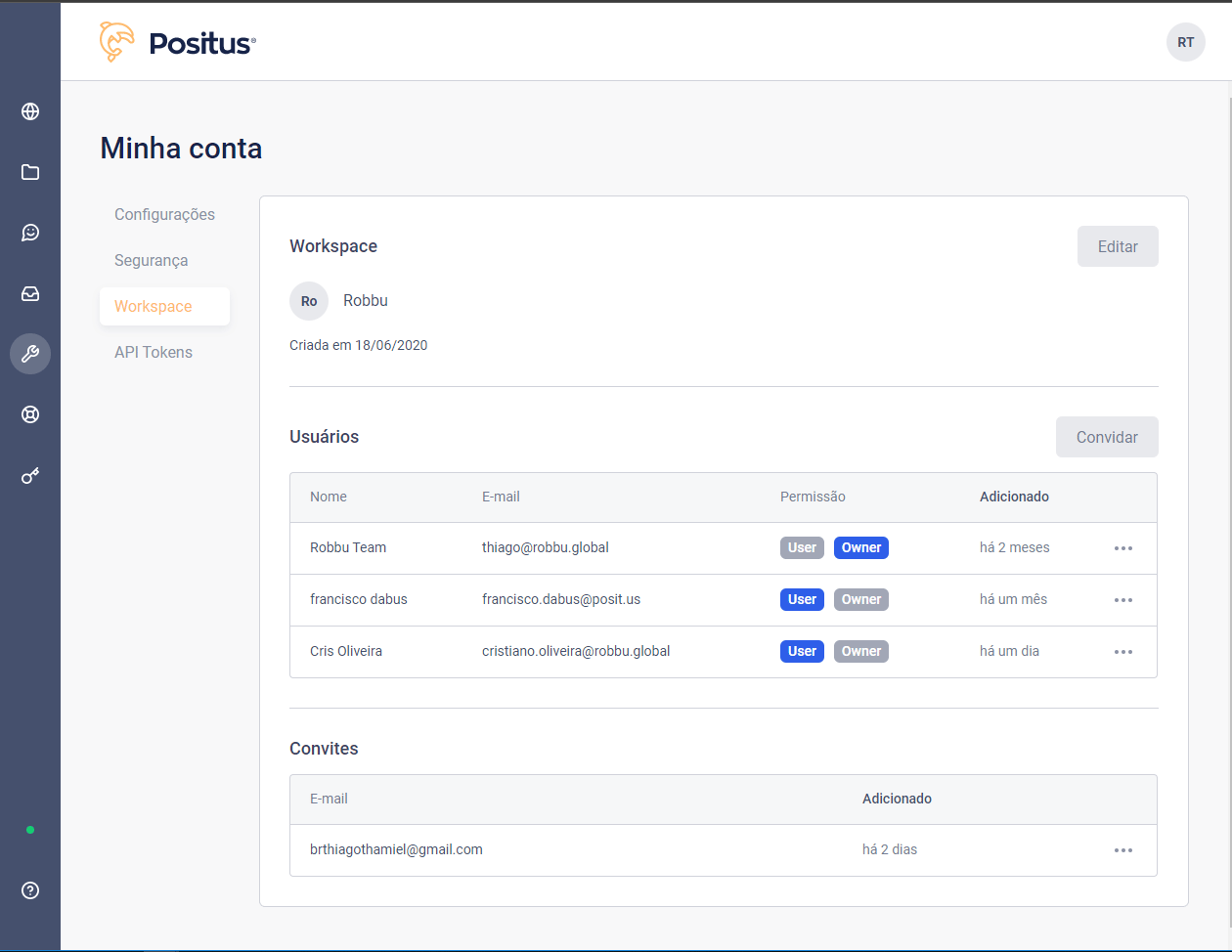
A Workspace is an organized development environment tailored for your business. You can access your workspace directly via [https://studio.posit.us/minha-conta/workspace](https://studio.posit.us/minha-conta/workspace) or by clicking on "Workspace" in the left sidebar menu.
📌 *A workspace centralizes all your WhatsApp Business API phone numbers.*\
📌 *Positus Messenger access accounts.*\
📌 *API Access Tokens.*\
📌 *Support configurations.*
 Free Positus Studio testing accounts do not include multi-user workspace
management features.
***
## How do I invite a new user to my Workspace?
Only users registered on the platform can join your workspace; every user must first create their own personal account using a valid email. \
\
📌 Go to your workspace using the left sidebar menu and click the "Invite" button. Next, enter one or more valid email addresses separated by semicolons (`;`).
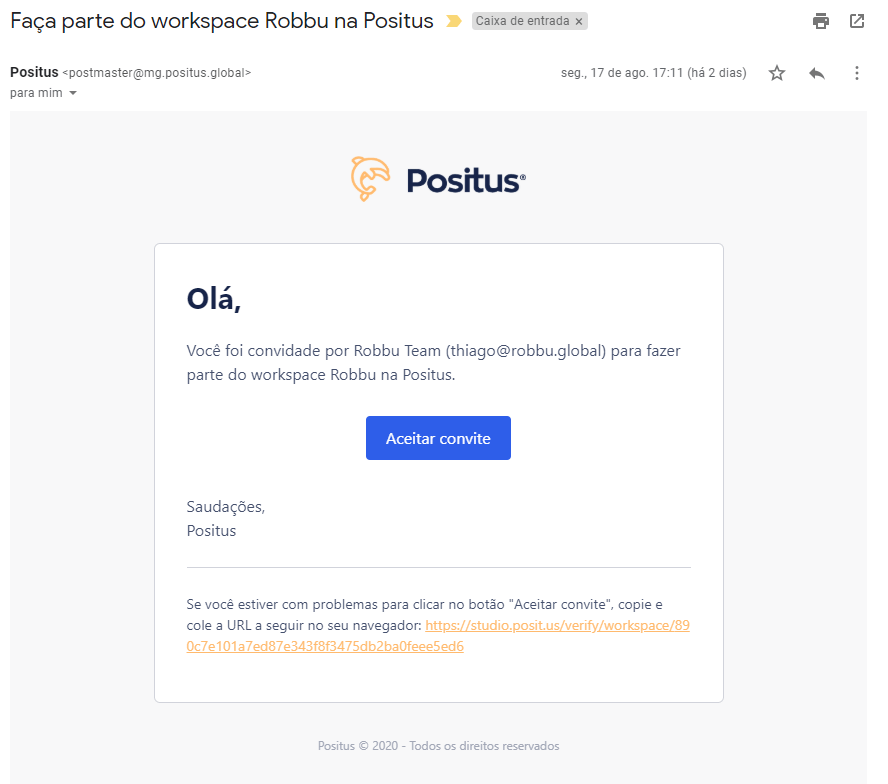
The invited user will receive an email as shown below and must click the "Accept Invitation" button. If they do not have an account yet, the system will route them to the registration screen. Once the account is created, the user will be automatically linked to your workspace.
Free Positus Studio testing accounts do not include multi-user workspace
management features.
***
## How do I invite a new user to my Workspace?
Only users registered on the platform can join your workspace; every user must first create their own personal account using a valid email. \
\
📌 Go to your workspace using the left sidebar menu and click the "Invite" button. Next, enter one or more valid email addresses separated by semicolons (`;`).
The invited user will receive an email as shown below and must click the "Accept Invitation" button. If they do not have an account yet, the system will route them to the registration screen. Once the account is created, the user will be automatically linked to your workspace.
 ### How do I check if a user accepted my Workspace invitation?
📌 Navigate to your workspace via the left sidebar menu. Users listed under the "Invitations" cluster have invitations that are still pending acceptance.
### How do I check if a user accepted my Workspace invitation?
📌 Navigate to your workspace via the left sidebar menu. Users listed under the "Invitations" cluster have invitations that are still pending acceptance.
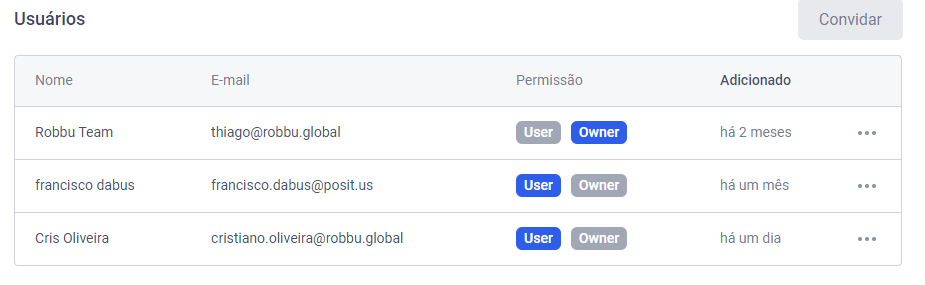
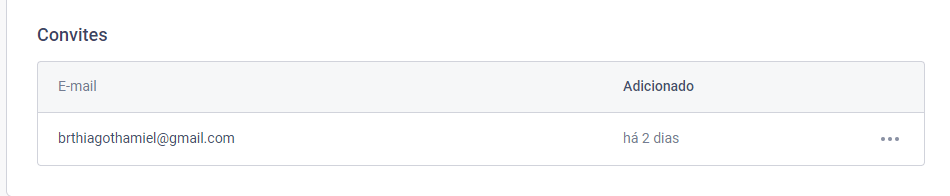 Users displayed under the "Users" section have successfully accepted your invitation.
 ### What is the user limit inside a workspace?
There are no user limits within a workspace.
### Can I only invite people with corporate emails to my Workspace?
No. You can invite anyone using any valid email address.
***
## How do I assign a user to a WhatsApp number?
1. Navigate to the "Resources" menu and click on the "Name" field of the specific phone number you wish to update.
2. Click the "Associate user(s)" button and input the email of one of the users already connected to your workspace.
### What is the user limit inside a workspace?
There are no user limits within a workspace.
### Can I only invite people with corporate emails to my Workspace?
No. You can invite anyone using any valid email address.
***
## How do I assign a user to a WhatsApp number?
1. Navigate to the "Resources" menu and click on the "Name" field of the specific phone number you wish to update.
2. Click the "Associate user(s)" button and input the email of one of the users already connected to your workspace.
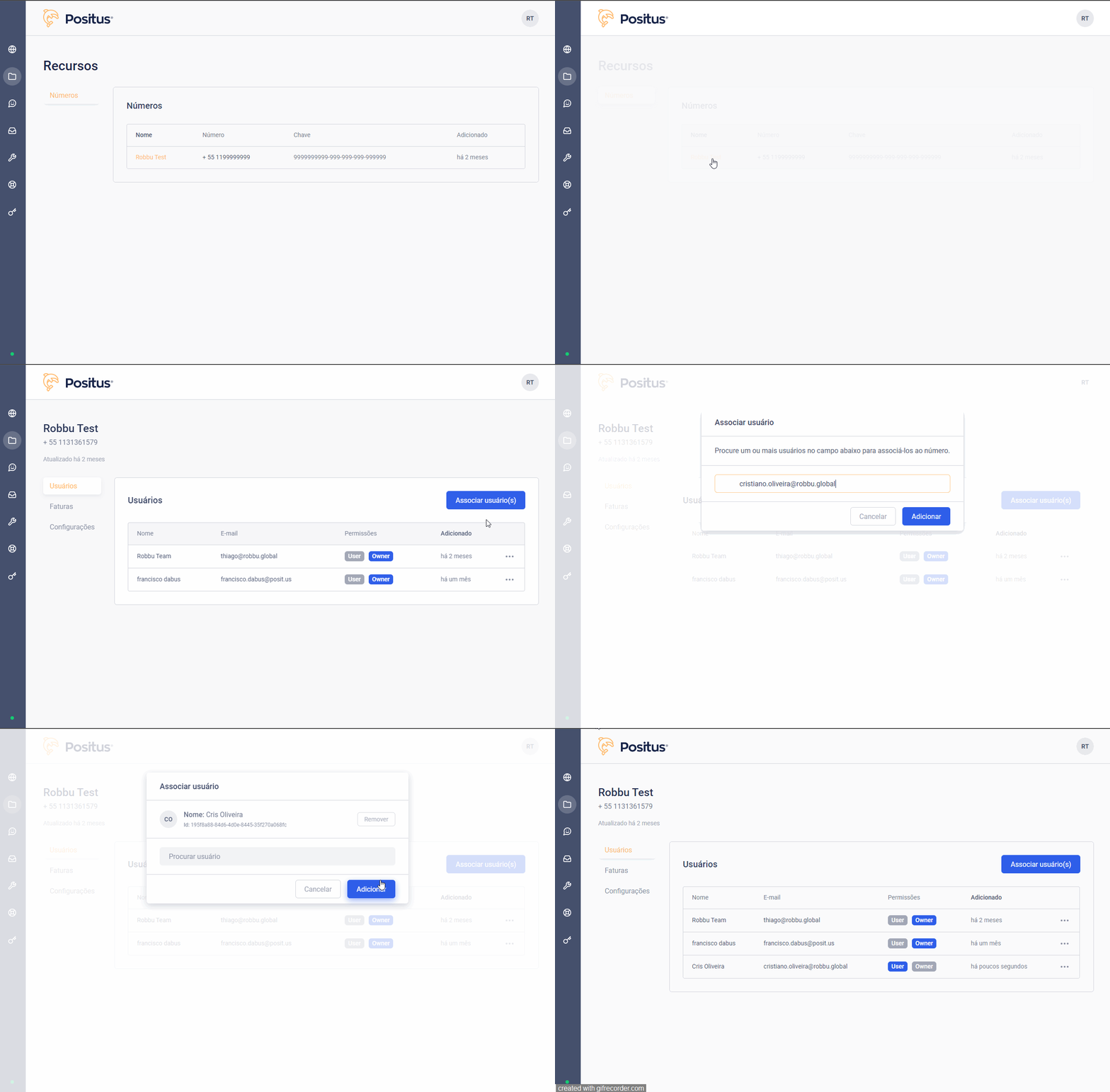 You can only assign users who belong to the exact same workspace as the target
phone number.
***
## How do I modify WhatsApp Business API profile settings?
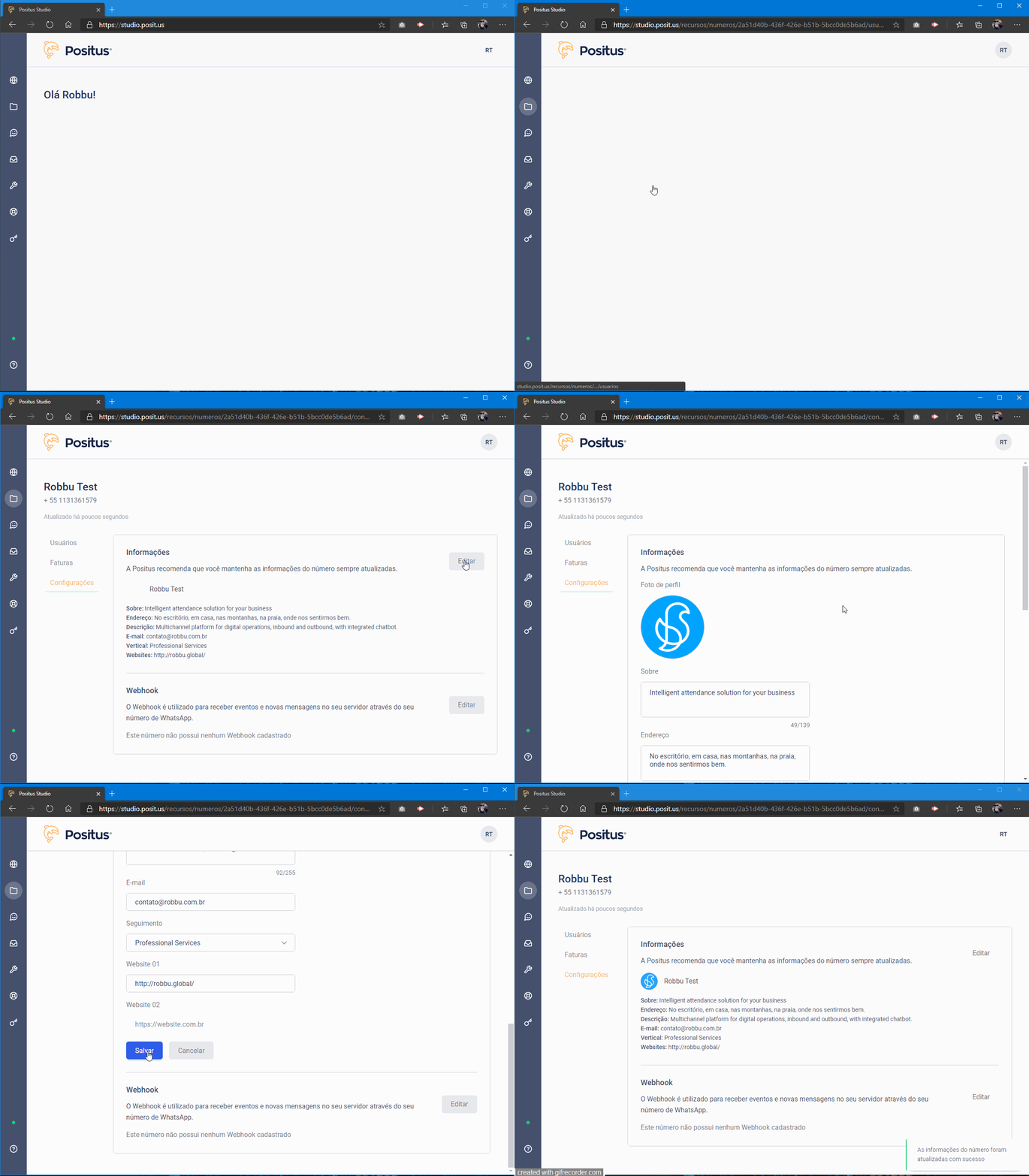
Navigate to **Resources >> Numbers >> Settings**, click on the "Edit" button, update your business details, and then click the "Save" button.
You can only assign users who belong to the exact same workspace as the target
phone number.
***
## How do I modify WhatsApp Business API profile settings?
Navigate to **Resources >> Numbers >> Settings**, click on the "Edit" button, update your business details, and then click the "Save" button.
 ***
## How do I configure the webhook on my WhatsApp Business API number?
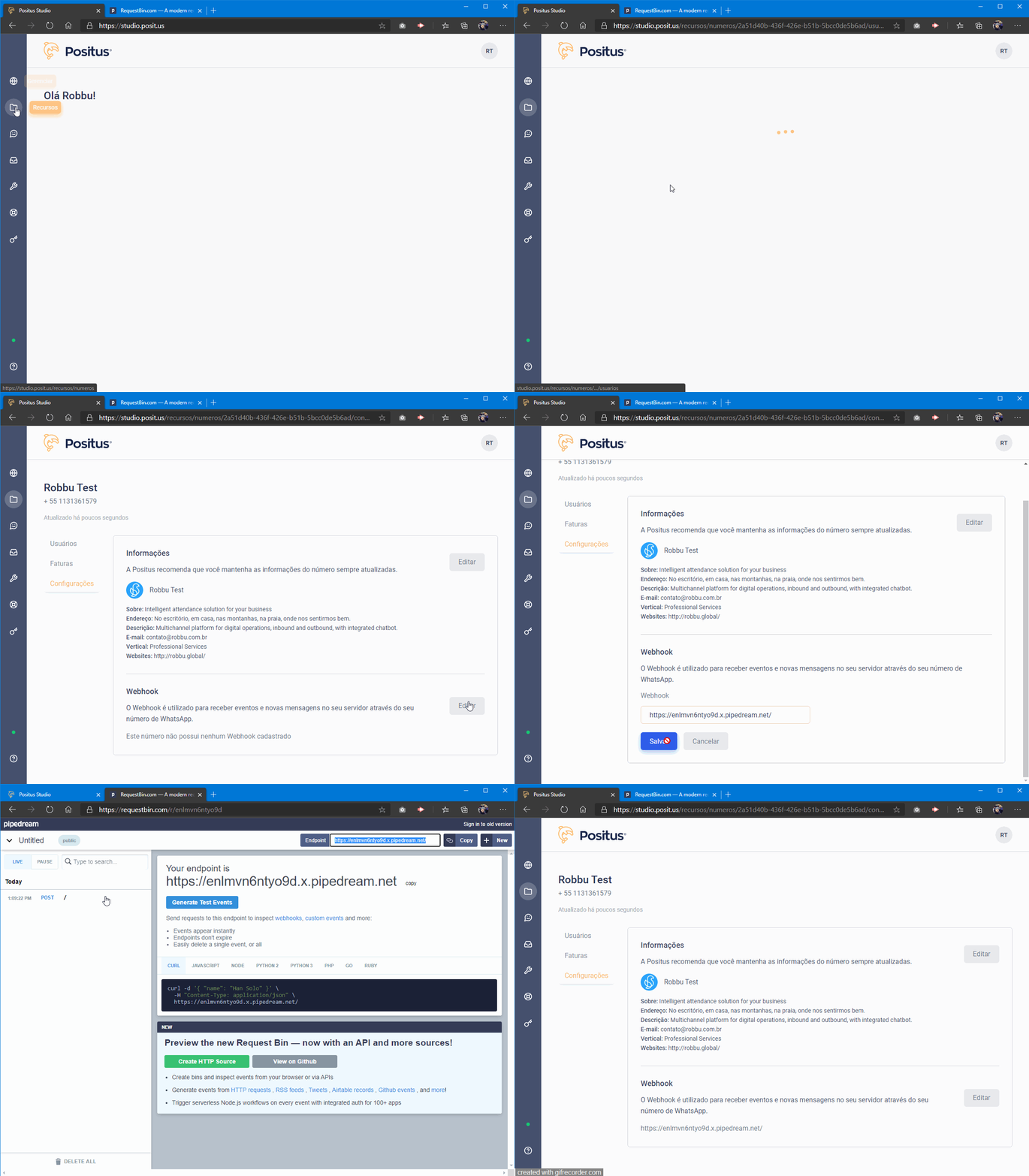
Navigate to **Resources >> Numbers >> Settings >> Webhook**, click on the "Edit" button, modify the endpoint URL target, and click the "Save" button.
***
## How do I configure the webhook on my WhatsApp Business API number?
Navigate to **Resources >> Numbers >> Settings >> Webhook**, click on the "Edit" button, modify the endpoint URL target, and click the "Save" button.
 ***
## How do I generate an API Token?
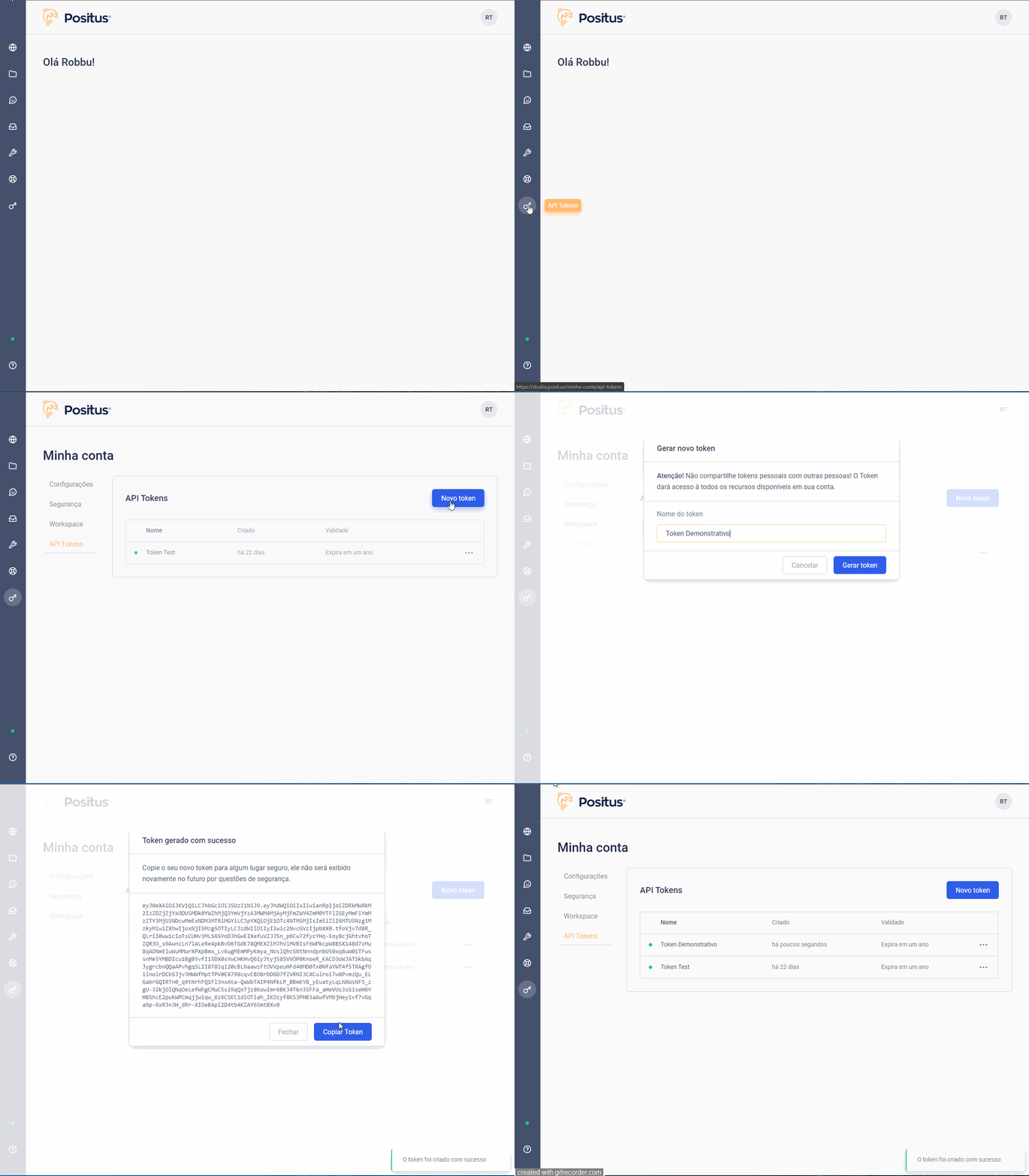
Navigate to the "API Tokens" menu directly or access [https://studio.posit.us/minha-conta/api-tokens](https://studio.posit.us/minha-conta/api-tokens), then click on the "New Token" button.
Make sure to copy your new token to a secure location immediately. For security reasons, it will never be displayed again in the future.
***
## How do I generate an API Token?
Navigate to the "API Tokens" menu directly or access [https://studio.posit.us/minha-conta/api-tokens](https://studio.posit.us/minha-conta/api-tokens), then click on the "New Token" button.
Make sure to copy your new token to a secure location immediately. For security reasons, it will never be displayed again in the future.
 **Warning!** Do not share personal access tokens with anyone! A token grants
administrative access to all data and resources within your account.
### How do I delete an active token?
Navigate to the "API Tokens" menu at [https://studio.posit.us/minha-conta/api-tokens](https://studio.posit.us/minha-conta/api-tokens), click on the ellipsis button (`...`) next to the target token, and click "Revoke".
**Warning!** Do not share personal access tokens with anyone! A token grants
administrative access to all data and resources within your account.
### How do I delete an active token?
Navigate to the "API Tokens" menu at [https://studio.posit.us/minha-conta/api-tokens](https://studio.posit.us/minha-conta/api-tokens), click on the ellipsis button (`...`) next to the target token, and click "Revoke".
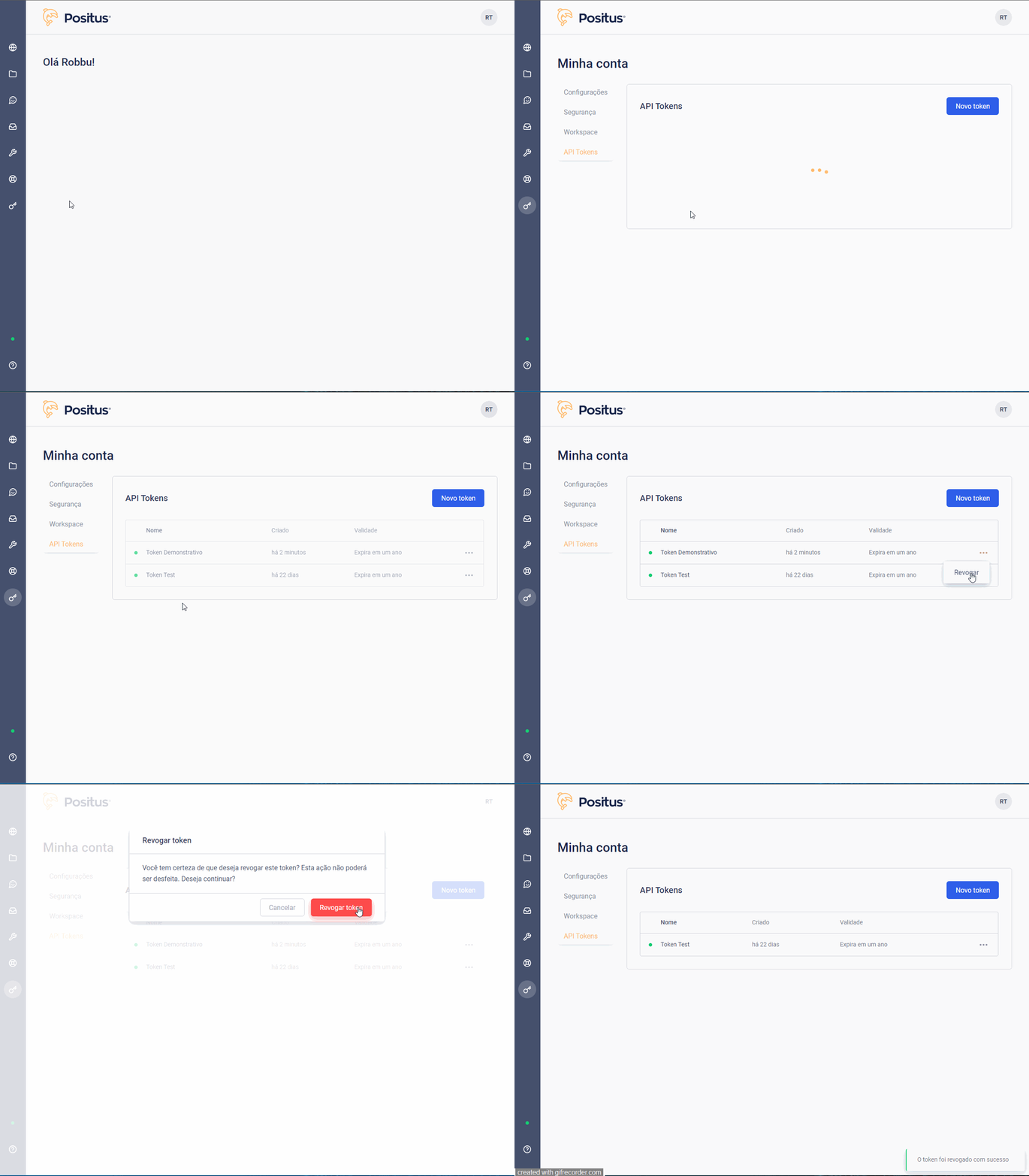 Once an API access token is revoked, it is permanently destroyed and cannot be
recovered.
***
## Creating Message Templates (HSM)
Before setting up templates, remember that Highly Structured Messages (HSMs) exist specifically to pre-format message templates that strictly comply with WhatsApp's policies, which prioritize the end-user experience. Therefore, broadcasting generic promotional or unsolicited content is forbidden. Ensure your copy does not contain language flagged as SPAM (e.g., hard promotional text or direct sales copy without authorization).
Keep these critical HSM features in mind:
1. **Rigid Structure:** They are highly structured and must comply with strict layout rules.
2. **Pre-Approval:** Every template must be reviewed and approved by WhatsApp before deployment.
3. **Opt-In Required:** Recipients must explicitly opt-in to receive these notifications beforehand.
4. **Dynamic Variables:** You can customize parameters using dynamic variables (e.g., standard customer names).
#### Structural parameters to follow:
* **Category:** Choose the use case category that best matches your message content.
* **Template Name:** This identifier can only contain lowercase alphanumeric characters and underscores (`_`). Spaces, uppercase letters, or special characters are invalid.
* **Correct Variable Formatting:** Variables must follow a sequential string pattern wrapped as `{{#}}`, where the number represents the index. Note that indices must strictly start at `{{1}}`.
* **Review Content Carefully:** Meta's approval team reviews templates standalone without knowing your broader business workflows. Proofread your copy multiple times to ensure the context is explicitly clear.
### Message Template Status Tracking
*
Once an API access token is revoked, it is permanently destroyed and cannot be
recovered.
***
## Creating Message Templates (HSM)
Before setting up templates, remember that Highly Structured Messages (HSMs) exist specifically to pre-format message templates that strictly comply with WhatsApp's policies, which prioritize the end-user experience. Therefore, broadcasting generic promotional or unsolicited content is forbidden. Ensure your copy does not contain language flagged as SPAM (e.g., hard promotional text or direct sales copy without authorization).
Keep these critical HSM features in mind:
1. **Rigid Structure:** They are highly structured and must comply with strict layout rules.
2. **Pre-Approval:** Every template must be reviewed and approved by WhatsApp before deployment.
3. **Opt-In Required:** Recipients must explicitly opt-in to receive these notifications beforehand.
4. **Dynamic Variables:** You can customize parameters using dynamic variables (e.g., standard customer names).
#### Structural parameters to follow:
* **Category:** Choose the use case category that best matches your message content.
* **Template Name:** This identifier can only contain lowercase alphanumeric characters and underscores (`_`). Spaces, uppercase letters, or special characters are invalid.
* **Correct Variable Formatting:** Variables must follow a sequential string pattern wrapped as `{{#}}`, where the number represents the index. Note that indices must strictly start at `{{1}}`.
* **Review Content Carefully:** Meta's approval team reviews templates standalone without knowing your broader business workflows. Proofread your copy multiple times to ensure the context is explicitly clear.
### Message Template Status Tracking
*  **Pending** The template is currently awaiting verification from Meta's review
team. Review windows usually take between 1 and 7 business days, though Meta
does not publish an official binding SLA.
*
**Pending** The template is currently awaiting verification from Meta's review
team. Review windows usually take between 1 and 7 business days, though Meta
does not publish an official binding SLA.
*  **Approved** Your message template is verified and ready to be triggered via
API requests or inside Positus Messenger.
*
**Approved** Your message template is verified and ready to be triggered via
API requests or inside Positus Messenger.
*  **Rejected** The primary reason for template rejection is using aggressive
marketing terms or pushy sales pitches that users did not clear. Certain
buzzwords trigger automated rejections as SPAM—avoid expressions such as
"clearance", "limited edition", "special opportunity", or "discount". Choose
your phrasing wisely.
**Rejected** The primary reason for template rejection is using aggressive
marketing terms or pushy sales pitches that users did not clear. Certain
buzzwords trigger automated rejections as SPAM—avoid expressions such as
"clearance", "limited edition", "special opportunity", or "discount". Choose
your phrasing wisely.
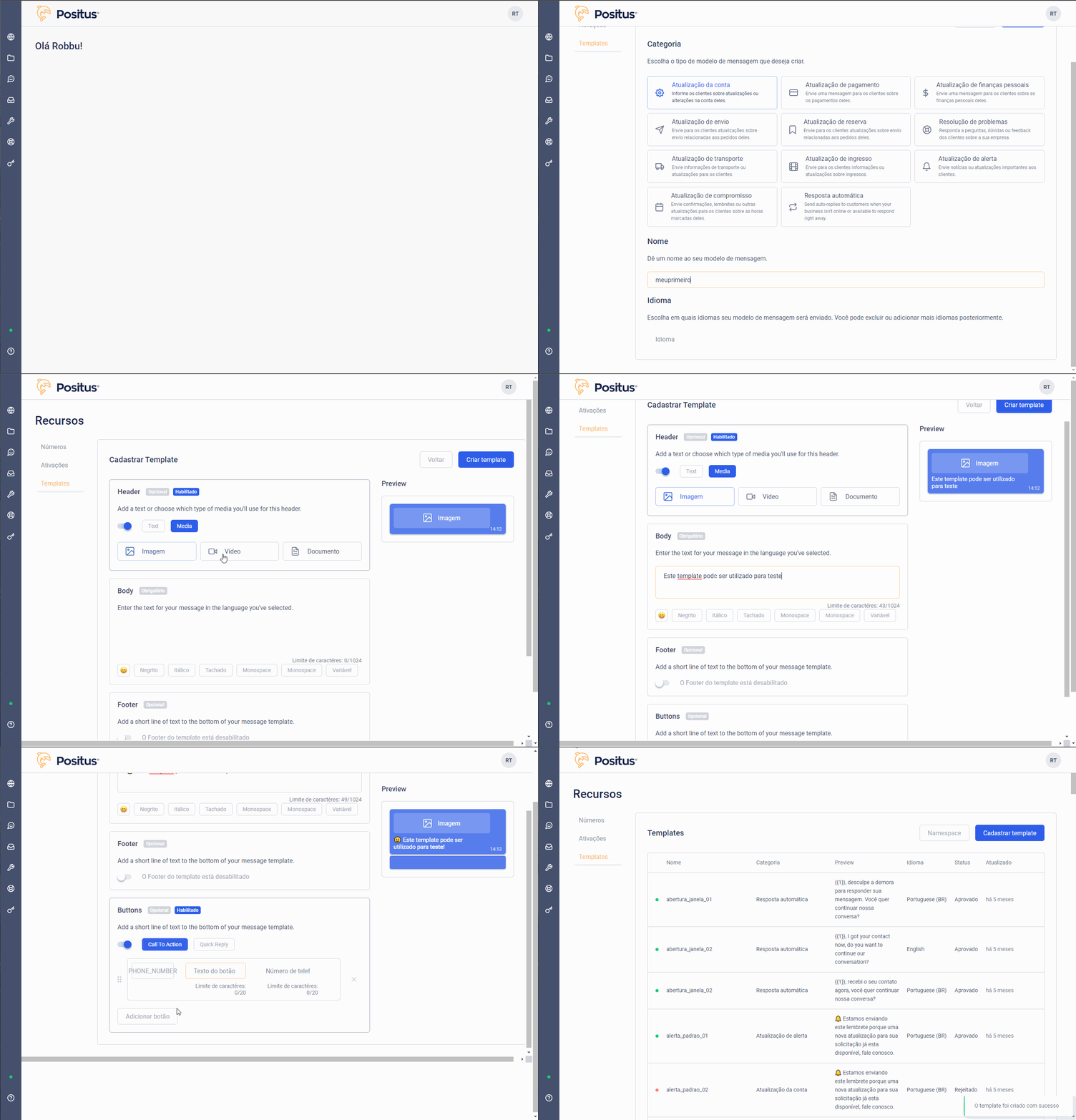 You can enrich your templates with Emojis, as well as markdown formatting like
bold, italics, or strikethroughs. Rich media components are also fully
supported (Images, Documents, and Videos).
Once an outbound HSM template successfully initiates a conversation and the user replies, a standard session window opens. You can then communicate freely using open text, rich attachments, or inline media without requiring additional templates.
### Handling Rejected Message Templates (HSM)
If a template is rejected due to SPAM policies or formatting violations, **it cannot be edited or deleted**. You will need to create and submit a brand new template. There is currently a system limit of 250 templates per WhatsApp Business Account (WABA).
***
## Support - Opening Tickets
You do not need to be an active paying customer to reach our helpdesk; technical support is available to all users with registered platform accounts.
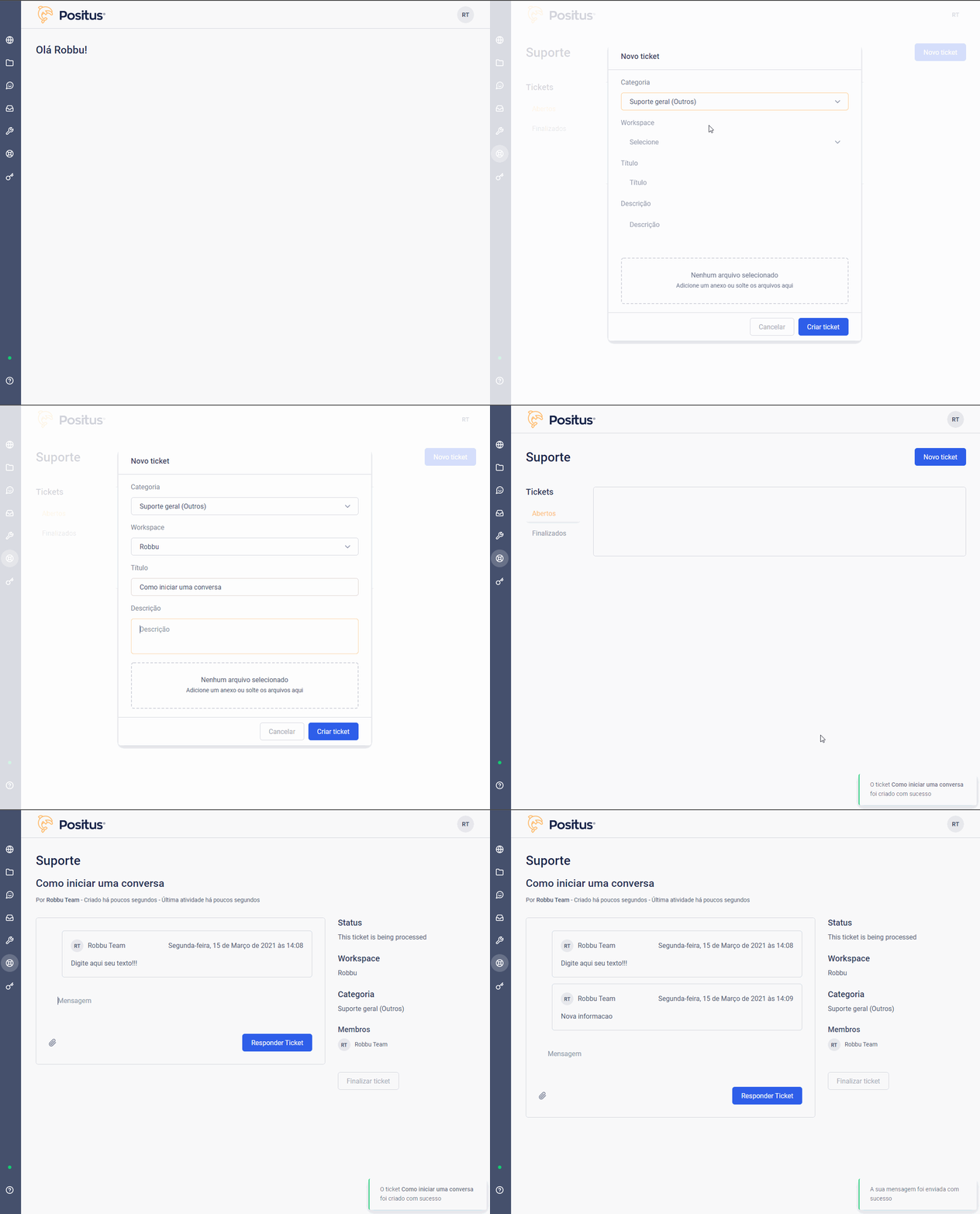
To open a support request, navigate to the left sidebar menu under **Support >> New Ticket**. Select your issue category, define a clear subject title, write out your detailed message, and click "Create Ticket". Whenever possible, upload screenshots or log payloads as attachments to serve as evidence.
*If you are an agency partner managing multiple entities, make sure to select the correct target workspace from your dropdown menu before submitting.*
You can also monitor closed tickets at any time by visiting the "Completed" dashboard archive.
You can enrich your templates with Emojis, as well as markdown formatting like
bold, italics, or strikethroughs. Rich media components are also fully
supported (Images, Documents, and Videos).
Once an outbound HSM template successfully initiates a conversation and the user replies, a standard session window opens. You can then communicate freely using open text, rich attachments, or inline media without requiring additional templates.
### Handling Rejected Message Templates (HSM)
If a template is rejected due to SPAM policies or formatting violations, **it cannot be edited or deleted**. You will need to create and submit a brand new template. There is currently a system limit of 250 templates per WhatsApp Business Account (WABA).
***
## Support - Opening Tickets
You do not need to be an active paying customer to reach our helpdesk; technical support is available to all users with registered platform accounts.
To open a support request, navigate to the left sidebar menu under **Support >> New Ticket**. Select your issue category, define a clear subject title, write out your detailed message, and click "Create Ticket". Whenever possible, upload screenshots or log payloads as attachments to serve as evidence.
*If you are an agency partner managing multiple entities, make sure to select the correct target workspace from your dropdown menu before submitting.*
You can also monitor closed tickets at any time by visiting the "Completed" dashboard archive.