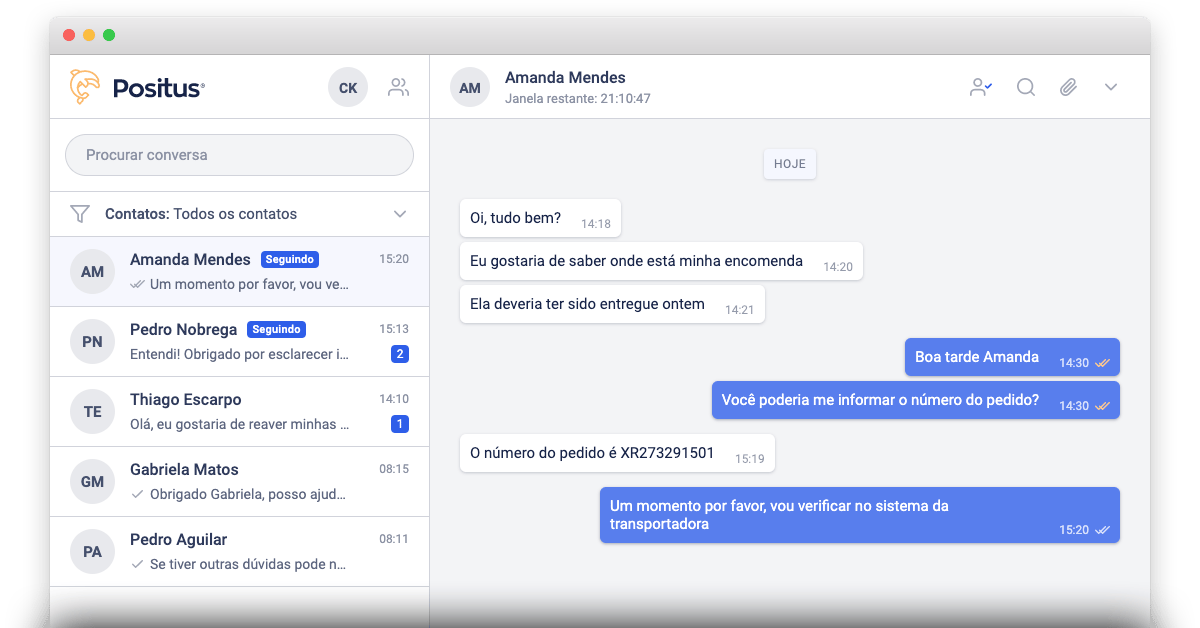
Positus Messenger
Key Features
💛 WhatsApp Business API—prevent your number from being blocked.💙 Multi-user simultaneous customer support.
🧡 Organize conversations by user with the “follow conversation” option.
💜 Multiple WhatsApp numbers on the same computer.
🤎 Tags - Custom labels.
💚 Advanced chat filtering by agent, tags, and content.
🖤 Send HSM - Active message templates.
💖 Integration with CRMs or platforms using the official API.
🤍 Monitor your phone number’s quality rating.
🤖 Possibility of integration with Robbu chatbot.\
Official Account vs. Sandbox
Positus Messenger can be used experimentally via Sandbox or officially in production after your WhatsApp Business number is activated. After creating your account on the website https://studio.posit.us/ and choosing one of the two options above, your Positus Messenger account is ready for use. Navigate to the left menu and click on “Messenger”.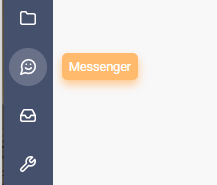
Add New Contact
Add new contacts and send active template messages to initiate a conversation. Click on the top menu “Add new contact” and input the name, nickname, and phone number including the country code. Remember that on the WhatsApp Business API, you can only chat with a contact freely if they reach out to you first or if they reply to your template message. 📌 Positus Messenger automatically validates whether the WhatsApp number is valid before saving a new contact.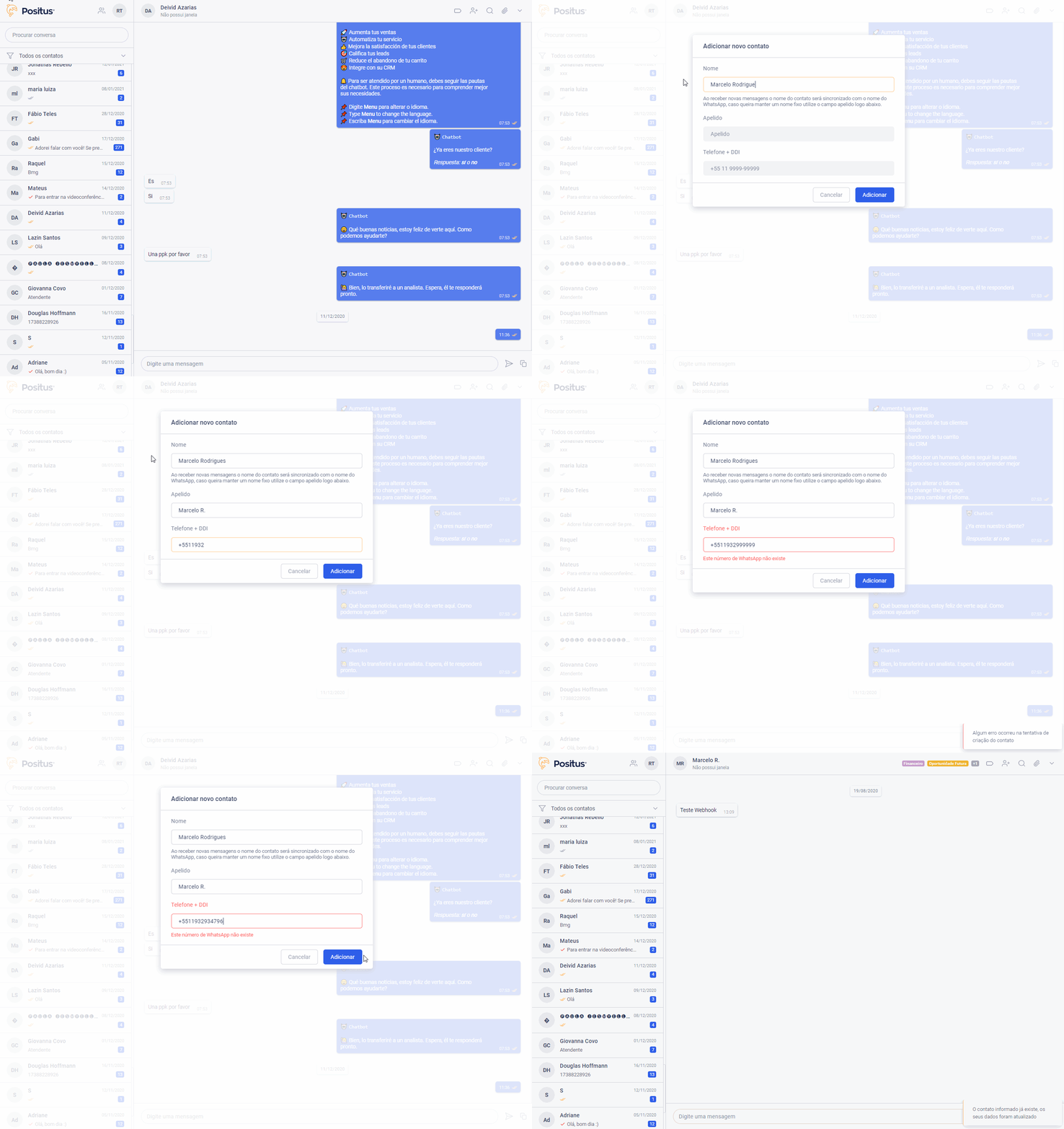
Upon receiving new messages, the contact’s name will automatically sync with
their WhatsApp profile name. If you prefer to keep a fixed name, use the
nickname field right below.
Send Template Messages
WhatsApp templates, also known as message templates, are reusable formats for common messages that a business can send through our Positus Messenger platform.Every template must be approved by WhatsApp before it can be used—this ensures you are following the allowed content guidelines. Before submitting your template for approval, remember that it must contain the entire message you wish to send, using placeholders like Name or Address, which will be replaced by each customer’s data during delivery.
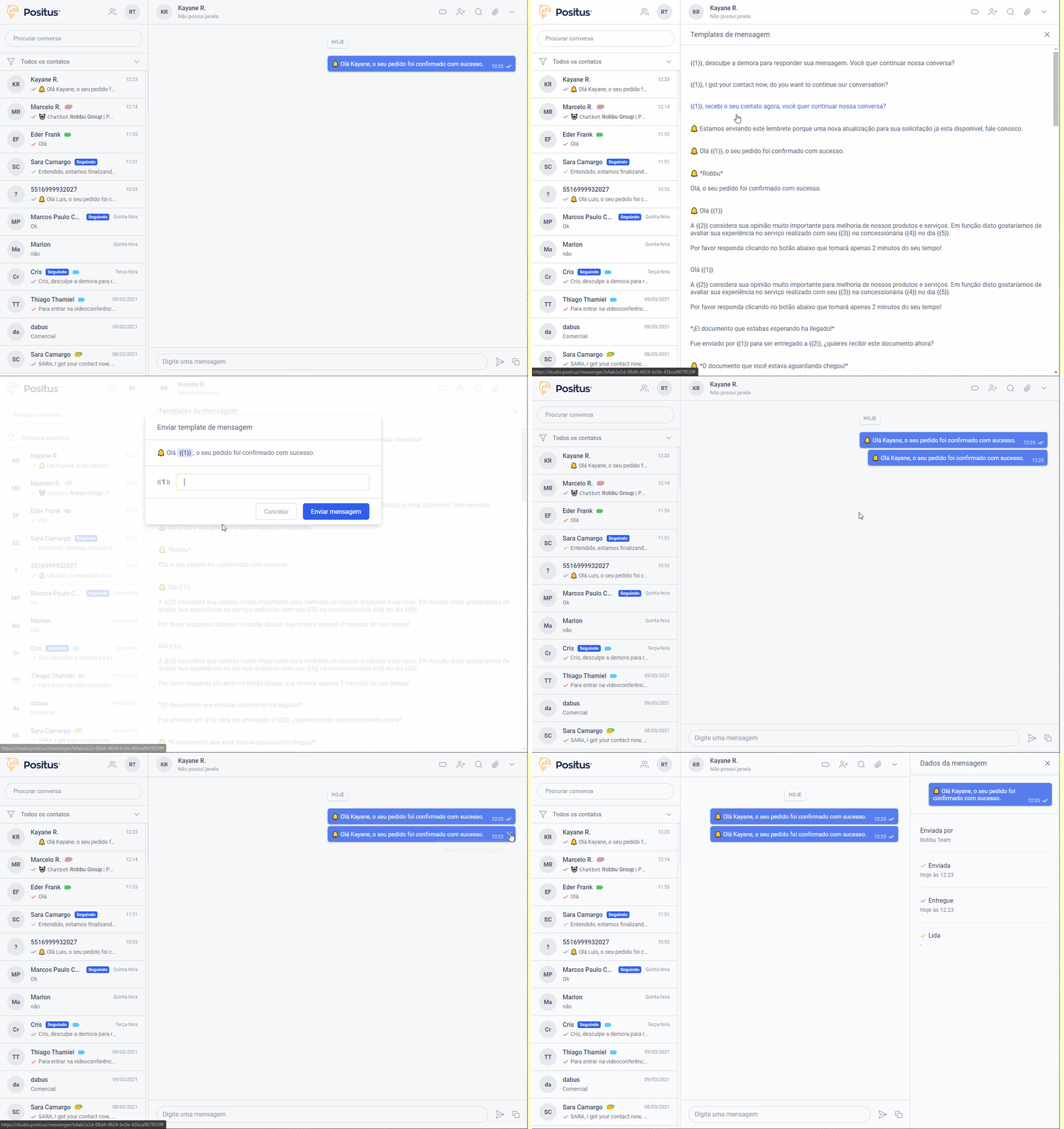
Sending a template message does not open the 24-hour window. The window will
only open when the recipient replies to your message. \ Learn
more.
Message Data (Status)
For any message you send, you can view a Message Data screen containing details about when it was delivered, read, or played by someone.- Sent By
- Displays the name of the Positus Messenger user who sent the message.
-

-

-

-

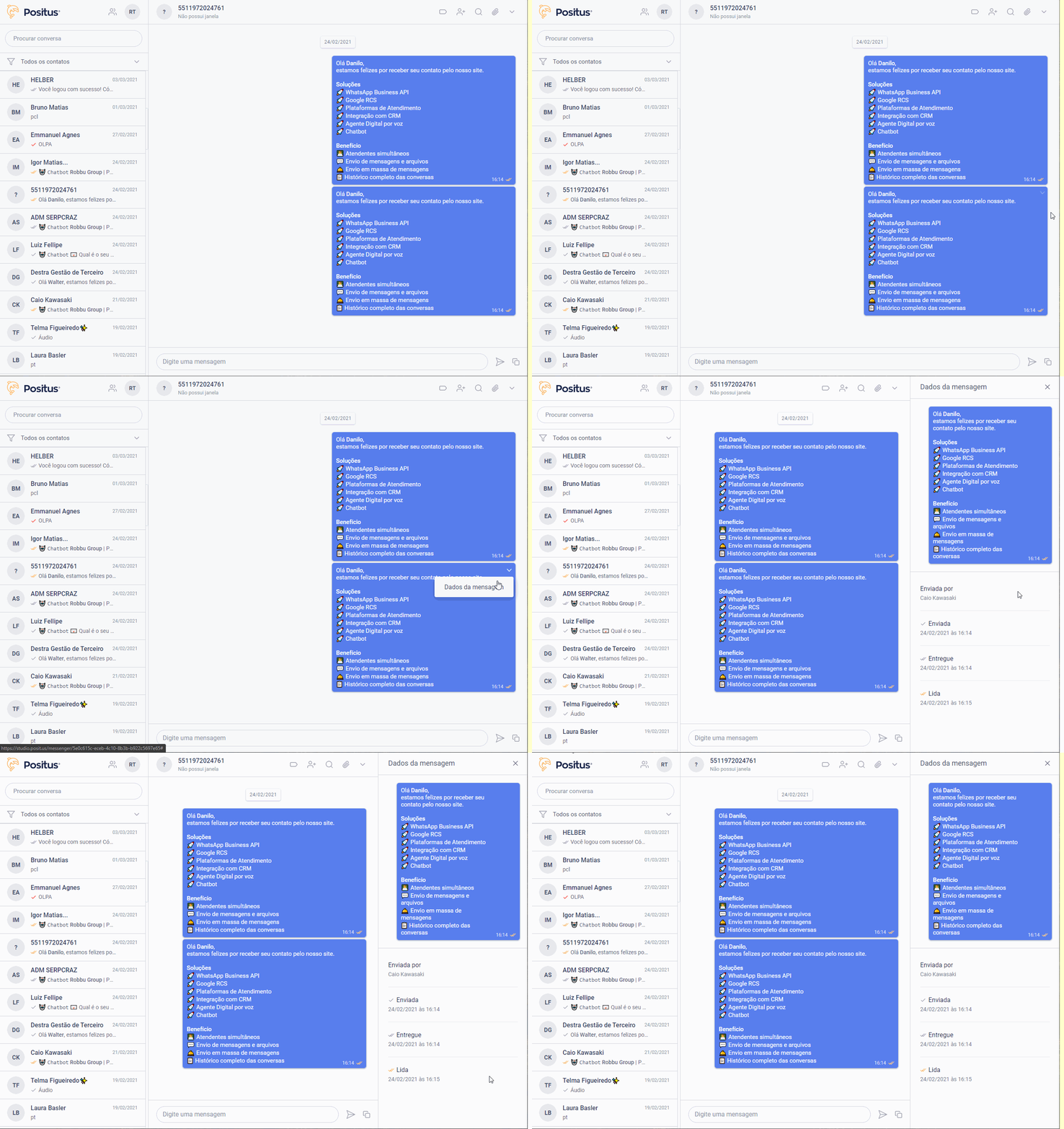
Read receipts not showing up?
According to WhatsApp, there are several reasons why the two checkmarks might not turn blue. This includes the recipient disabling read receipts, blocks, the phone being turned off, etc.What is the 24-Hour Window?
If a user initiates a conversation with you, you can continue it over WhatsApp for up to 24 hours after their last message for free (“24-Hour Window”). Outside of this 24-Hour Window, you can only send messages using approved Message Templates (HSM), for which the applicable rate will be charged.To learn more, access the WhatsApp Business Policy:
https://www.whatsapp.com/legal/business-policy/
What are Tags (Labels)?
Positus Messenger allows you to add tags to chats to manage conversations. Tags or labels are useful for businesses and professionals who want to keep messages from customers, suppliers, and internal topics intelligently organized and listed within the messenger. This feature adds colored flag icons over a chat’s description in the chat list. This way, the user managing contacts receives a visual aid to quickly recognize a topic and gather conversations from each category into a single list.Add and Remove Tags from a Conversation
To add a tag, open a conversation and click on the tag indicator icon, then select the desired tags to label and organize the chat. Clicking on a tag that is already selected for that conversation will automatically remove it.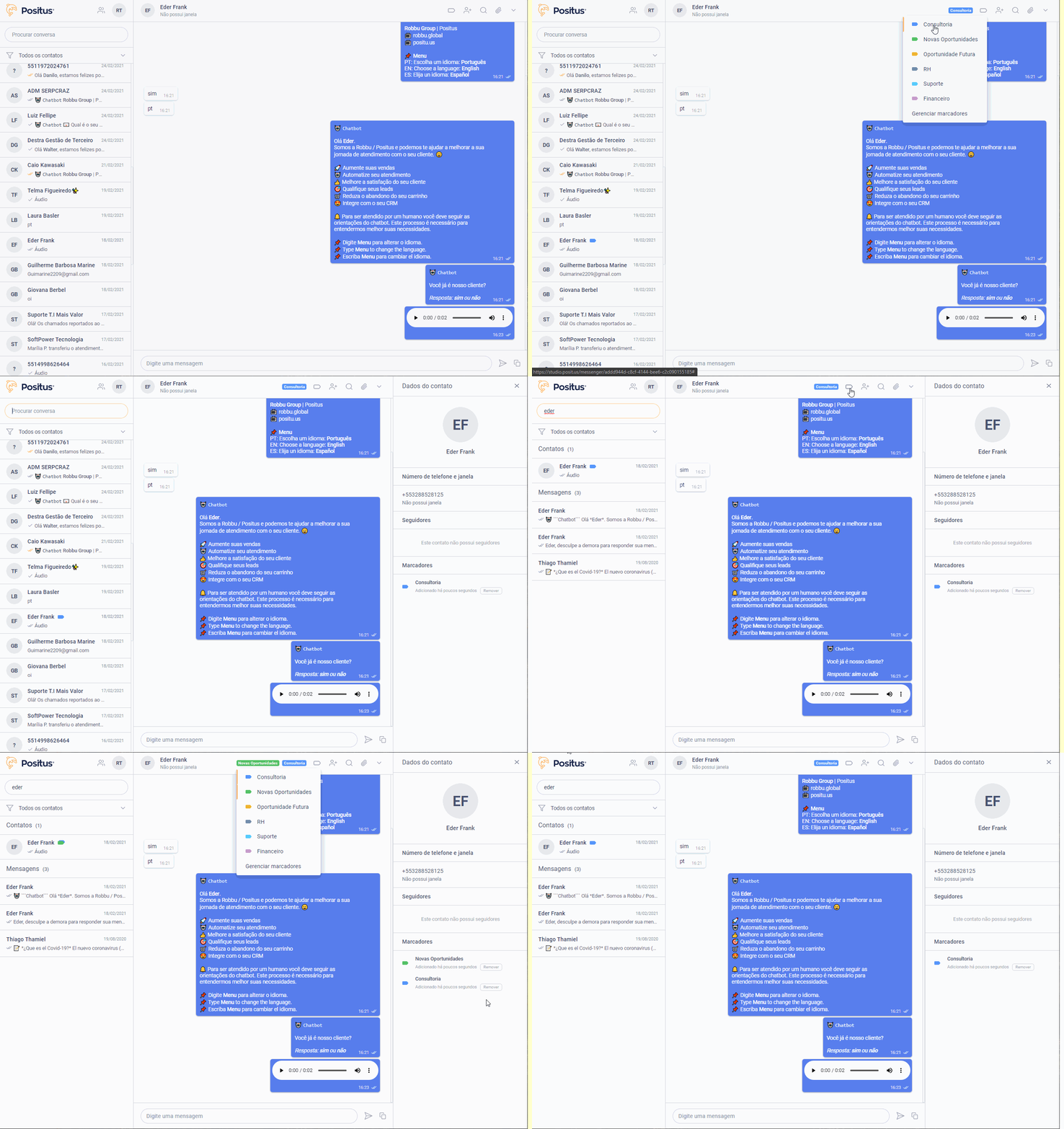
There is no limit on the number of tags per conversation.
Filter Conversations by Tags
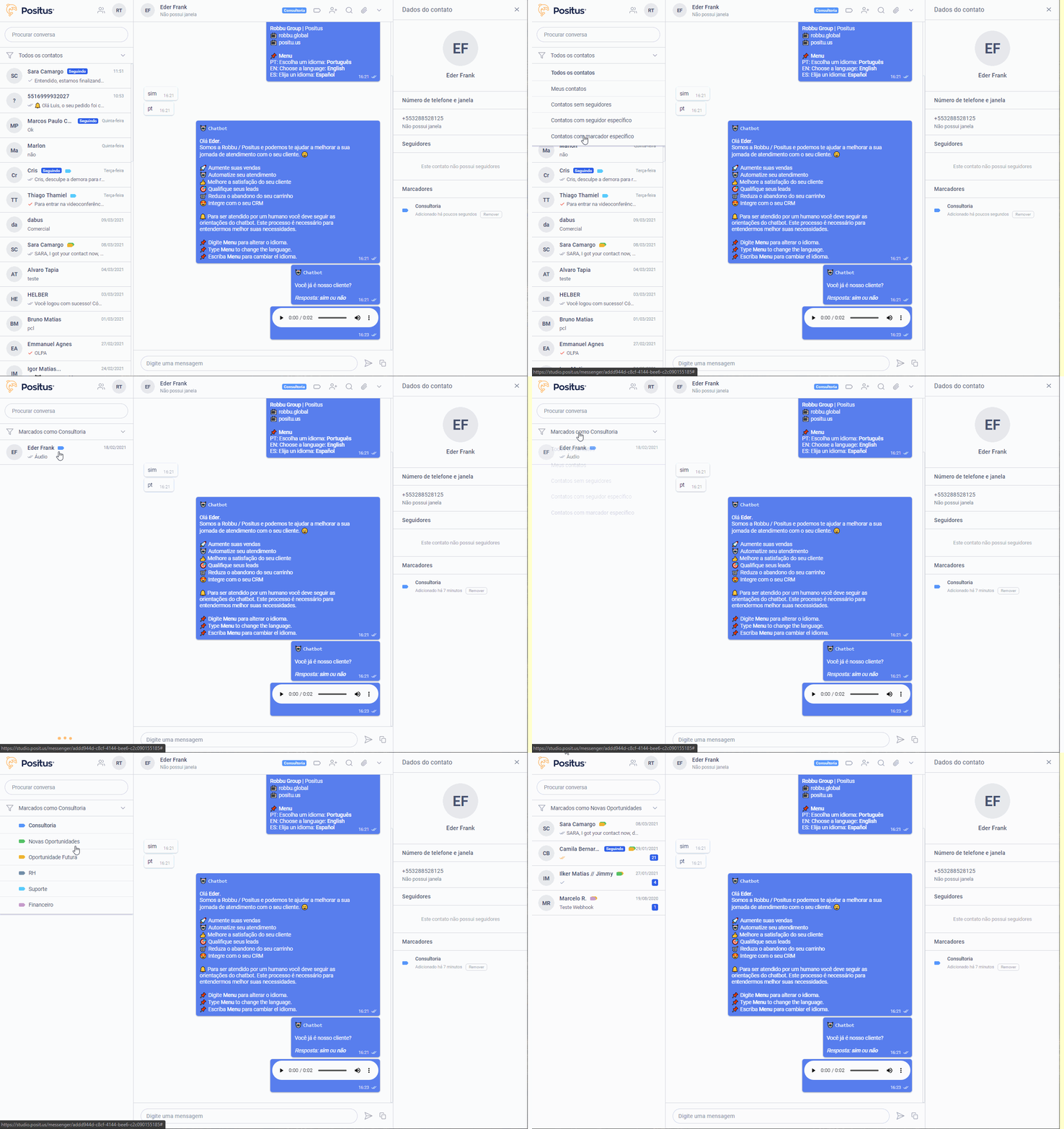
Tag Filtering allows you to organize your conversations by segmentation.You can filter your chats using the “Contact with specific tag” filter and then select the tag you wish to filter by.
Manage Tags
Tags can be accessed directly within a conversation in Positus Messenger or through Positus Studio by navigating to “Resources” >> “Numbers” >> (Click on the number you want to create tags for) >> “Tags” >> “Register Tag”.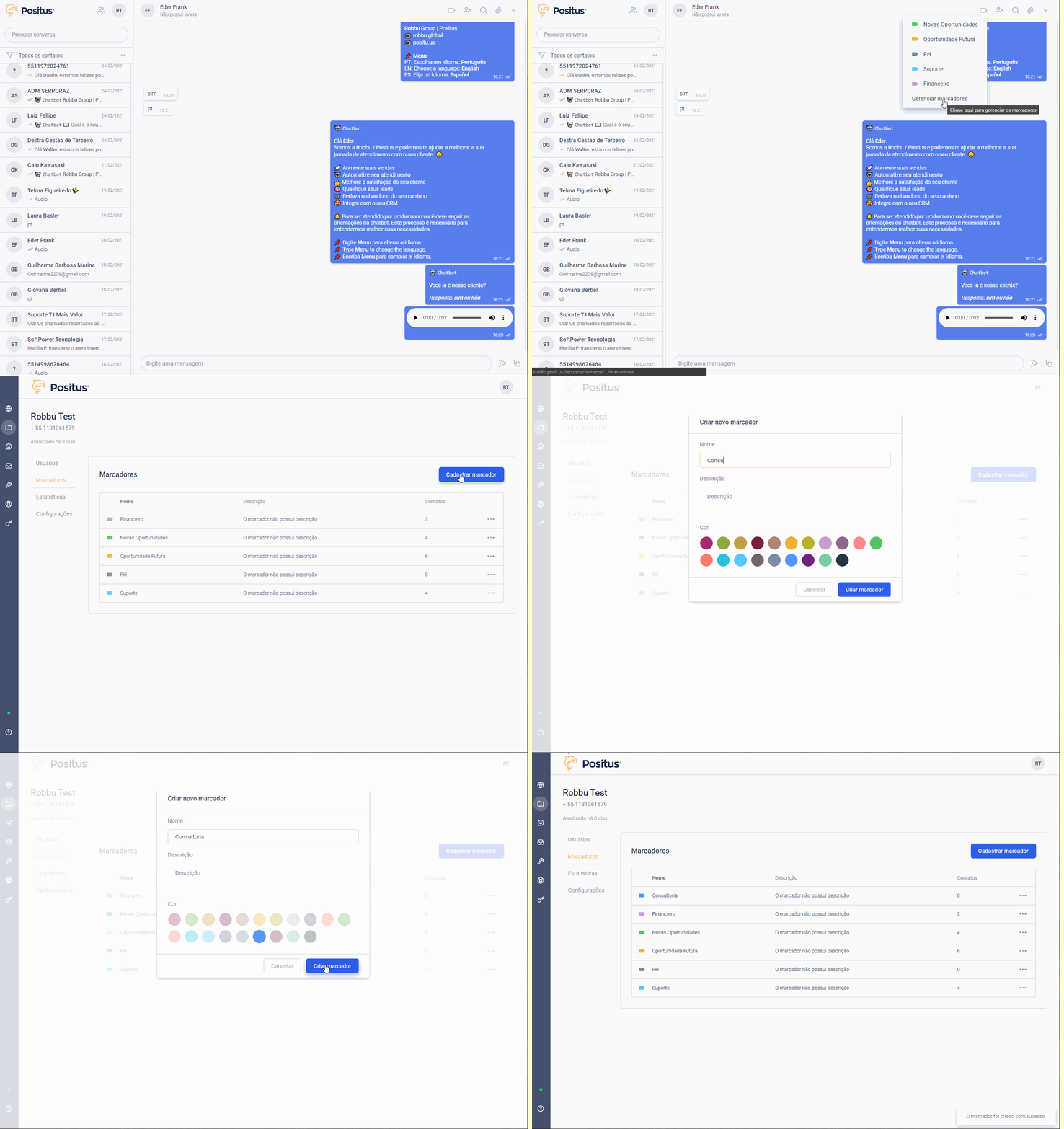
Only users with the “owner” profile for both the number and workspace can
manage tags. To learn more about access profiles, see this link: Click
Here
How to Search for a Chat by Keyword, Contact Name, or Phone Number
By using the search feature in Positus Messenger, you can easily find contacts, messages, photos, videos, links, GIFs, audios, and documents sent within your chats.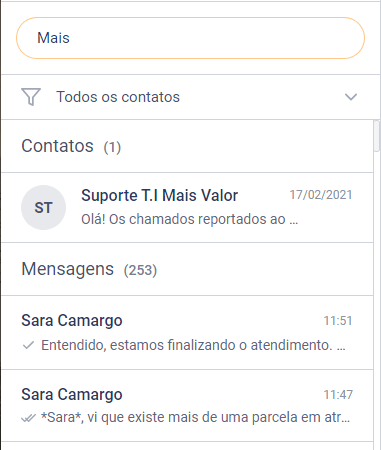
Search for a Message Within a Conversation
Using the conversation search feature in Positus Messenger, you can easily locate specific messages, photos, videos, links, GIFs, audios, and documents within that chat.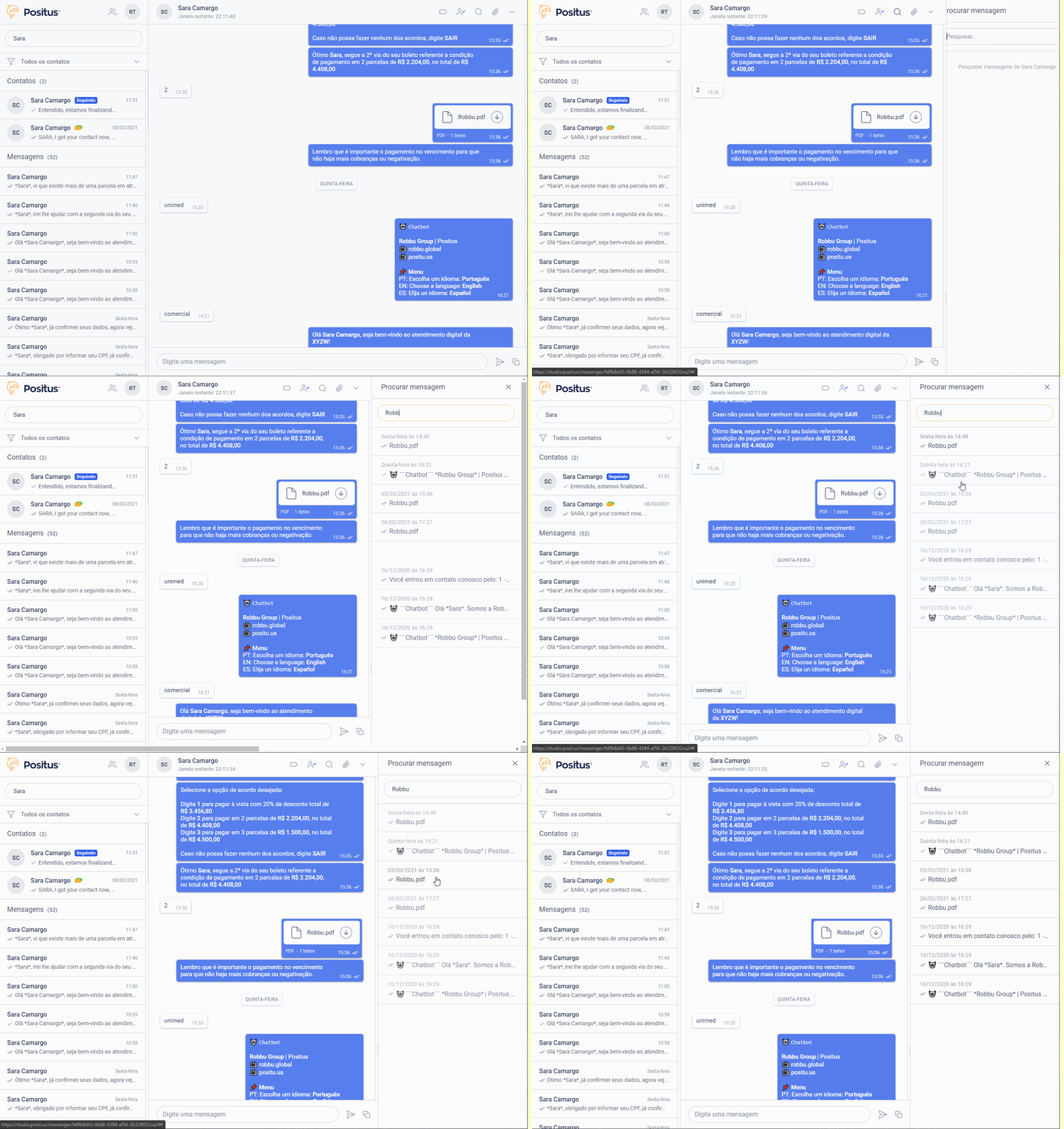
Advanced Conversation Filters
- All contacts
- The list will display all contacts available for this number, sorted by the last message received.
- My contacts
- The list will display all contacts followed by the logged-in user, making it easy to see which contacts they are currently assisting.
- Contacts with no followers
- The list will show all contacts without any followers, making it easy to identify which clients are not yet being assisted by any user.
- Contact with specific follower
- Selecting this option will bring up a list of other users associated with this number. After selecting a user, the list will display all contacts being followed by the filtered user.
- Contact with specific tag
- Selecting this option will show a list of tags associated with this number. After selecting a tag, the list will display all contacts marked with that specific filter.
Sending Text Messages
Send Video Files, Photos, and Documents
Open a conversation, tap the icon, and select one or multiple files. A preview screen will appear, where you can remove or add more files before sending.
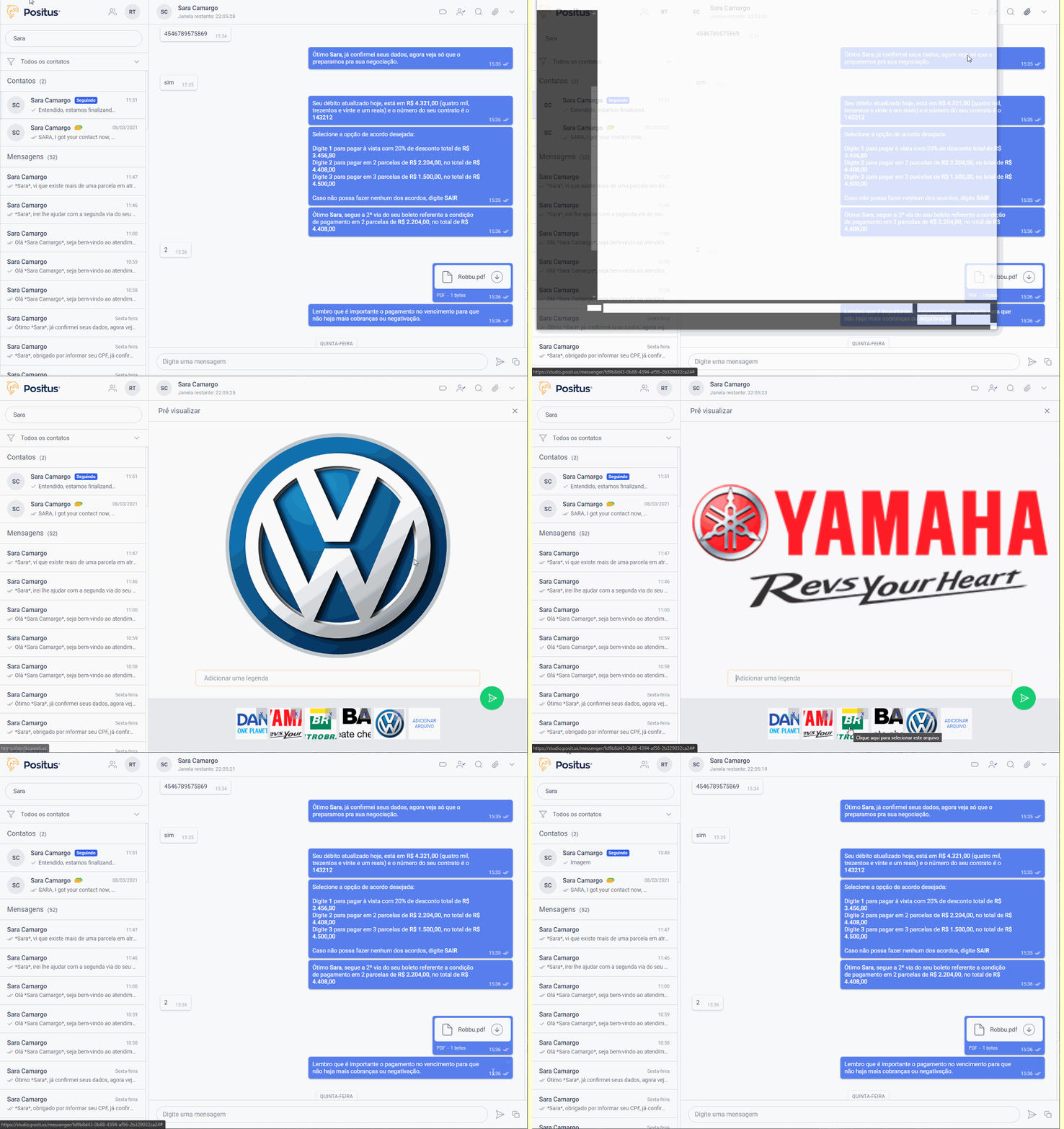
Tip: You can also drag and drop files directly into the conversation.
How to Send a Text Message
Open a chat and use the text box to type your message. Click the icon to send or press the Enter key.
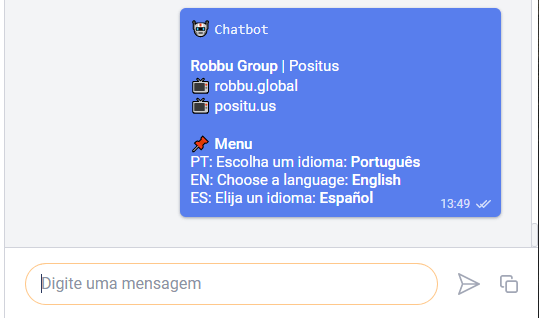
Tip: Use Shift + Enter to insert a line break.
How to Format Your Messages
WhatsApp allows you to format text inside your messages. This feature cannot be turned off.Italic
To italicize your message, place an underscore before and after the text: _text_Bold
To bold your message, place an asterisk before and after the text: *text*Strikethrough
To strikethrough your message, place a tilde before and after the text: ~text~Monospace
To monospace your message, place three backticks before and after the text: ```text```How to Delete Sent Messages
It is not possible to delete sent messages using Positus Messenger due to an operational limitation of the WhatsApp Business API. This safeguard ensures your company maintains a more secure environment, preventing inappropriate messages from being sent and subsequently erased.How to Reply to a Message
Currently, it is not possible to quote/reply to a specific message within the interface; however, your contact can reply to messages normally, and their text will be displayed in Positus Messenger linked to the original message. See the image below.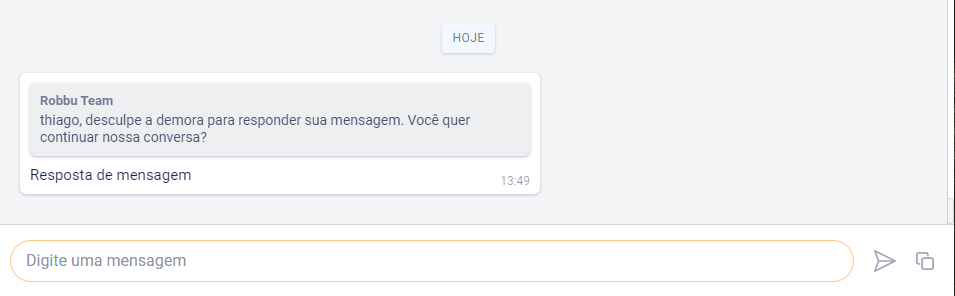
Multiple WhatsApp Numbers for the Same User
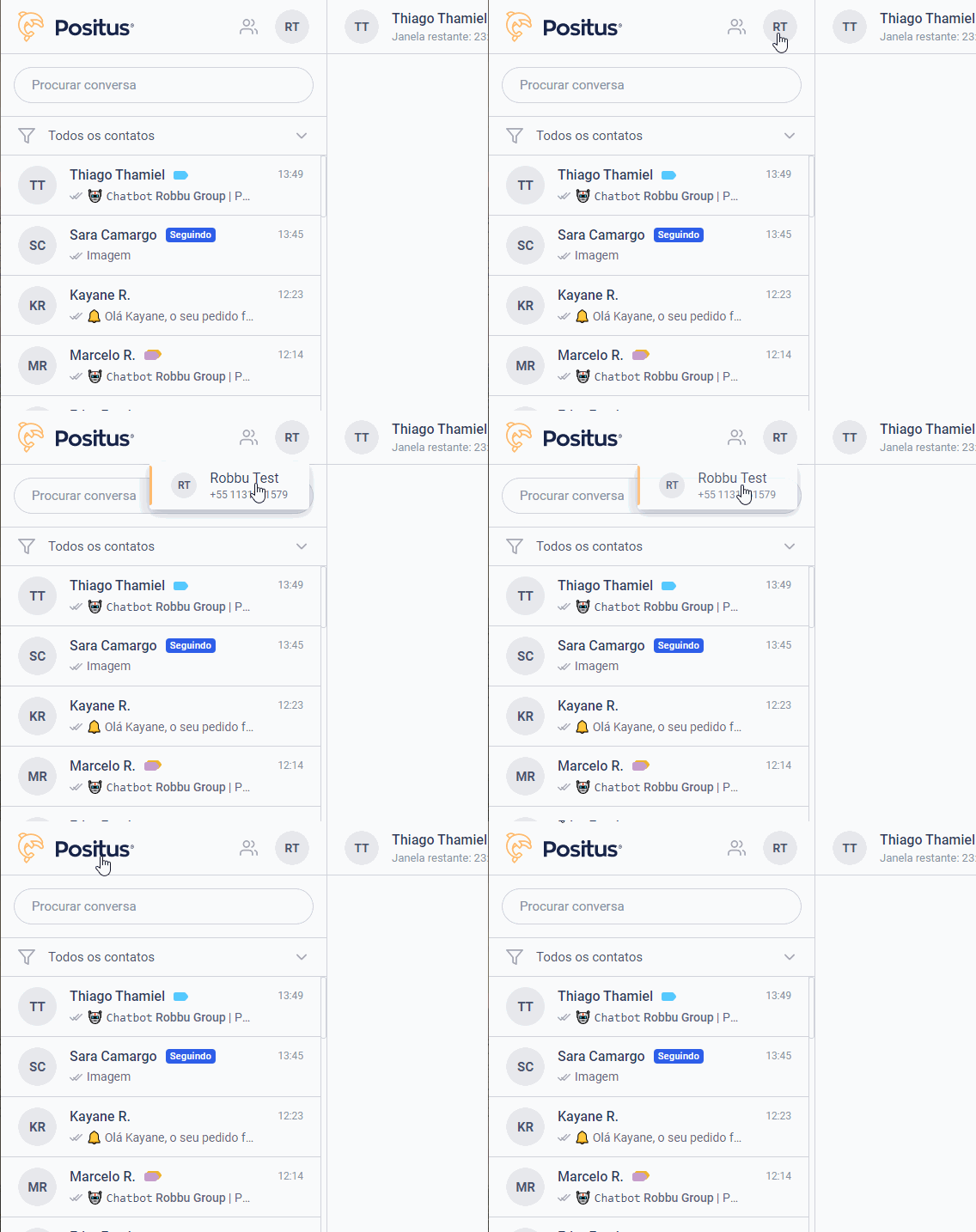
Your company can have multiple numbers, allowing the same user to switch views within Positus Messenger without needing to reconnect. To do this, click on your initials in the top-left menu and select the desired number. This feature will be available if you have more than 1 active number on the platform.